Author: pvadmin

  • macOS kill servicios (en Castellano)

    Hola lectores,

    Hoy, vamos a entregar más un tema sobre cli. En este artículo, vamos a aprender cómo eliminar servicios en la aplicación de terminal.

    Como vemos, está vacía por ahora el terminal, o iTerm2.

    Ahora, vamos a llamar a un comando del sistema operativo llamado top.

    Vamos a matar en la terminal el servicio llamado qemu, con el pid como 4293.

    Press q (to exit)

    Press Return carrier ( Enter)

    Ahora, regrese al comando top para ver si el servicio se ha ido.

    Como vemos no hay nada ahora.

    Press q again ( exit command)

  • macOS disk utility (en Castellano)

    Hola todos!

    Hoy, aprenderemos cómo usar el modo de terminal de la utilidad de disco para grabar DVD-RW o DVD-R.

    Esta herramienta es muy útil para los administradores de sistemas.

    En primer lugar, aprenderemos a borrar un dvd-rw.

    hdiutil burn -erase

    Ahora, veremos cómo grabar un dvd-rw.

    hdiutil burn name_of_.iso

    Elegí grabar como ejemplo la iso de Debian, debian.org, la última compilación iso.

  • FreeDOS comandos (en Castellano)

    Hola todos!

    Hoy, vosotros iran leer sobre FreeDOS, compatíble con MS-DOS 6.22.

    Las funciones que aprendimos antes se pueden encontrar en los artículos anteriores sobre qemu con FreeDOS. Vamos a trabajar con máquinas qemu y VirtualBox.

    El símbolo del sistema es una necesidad muy esencial, sin él, no puede aprender cómo se puede obtener el conocimiento.

    Ahora, vamos a aprender cómo usar el comando dir, este comando es muy útil para listar un directorio.

    Ahora vamos a ver el comando ver, con este comando podemos ver la versión del sistema en sí.

    Ahora, veremos el directorio /s APPS, este comando listará un cierto directorio dentro.

    Ahora, vamos a aprender cómo cambiar el directorio con el comando cd. Tenemos una tarea para cambiar de directorio, usamos este comando.

    Finalmente, la pantalla clara, el comando cls.
  • FreeDOS basic tutorial

    Hello readers,

    Today, we will learn the basics of FreeDOS, compatible with MS-DOS 6.22.

    The features we learned before can be found in the previous articles about qemu with FreeDOS. We are going to work with qemu and VirtualBox machines.

    The command prompt is a very essential need, without it, you can’t learn how to the shattered knowledge can be earned.

    Now, we are going to learn how to use dir command, this command is very useful to list a certain directory.

    Now we are going to see ver command, with this command we can see the version of the system itself.

    Now, we will see the dir /s APPS, this command will list a certain directory inside.

    Now, we are going to learn how to change the directory with the cd command. Every task to switch directories, we use this command.

    Finally, the clear screen, the cls command.

  • podman installation

    Welcome to the first article of the month on the coder by gleentech Labs. We are going to learn how to install podman on a macOS machine. We are going to try to make the task easier.

    brew install podman-desktop

    As we see, it’s already installed. Time a time we should update brew.

    Now, we have the podman installed. We are going to see how to create an image to run on podman.

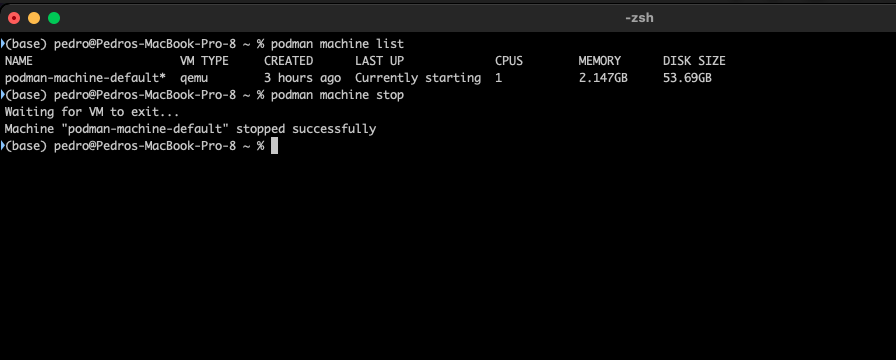
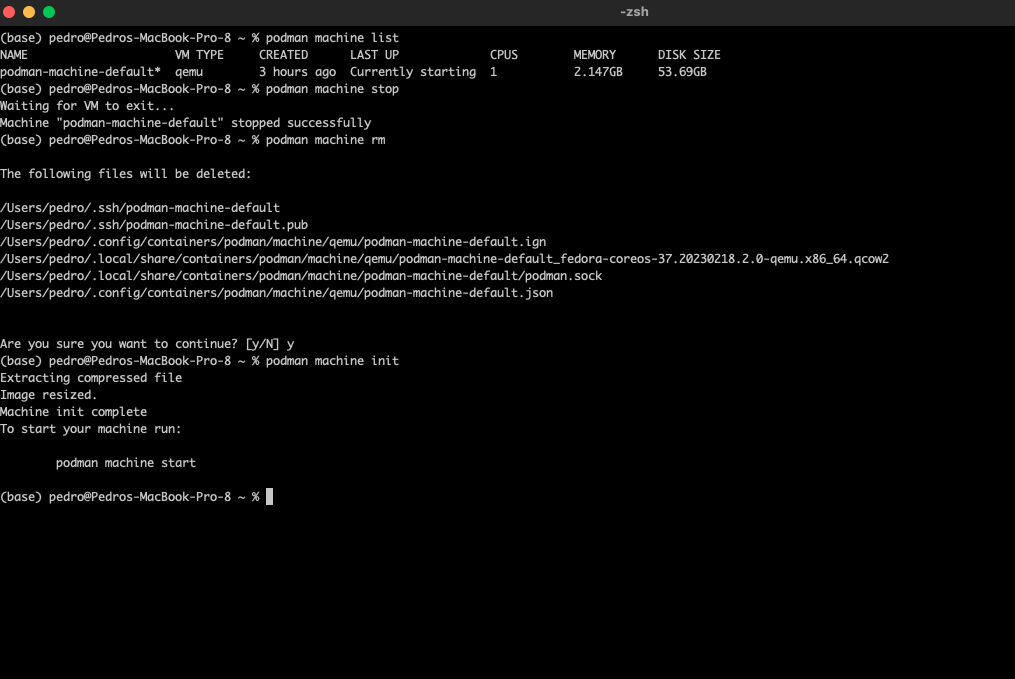
    This command is to list the machines active. Now, we are going to delete this image to be prepared for our labs monthly.

    podman machine list
    podman machine stop

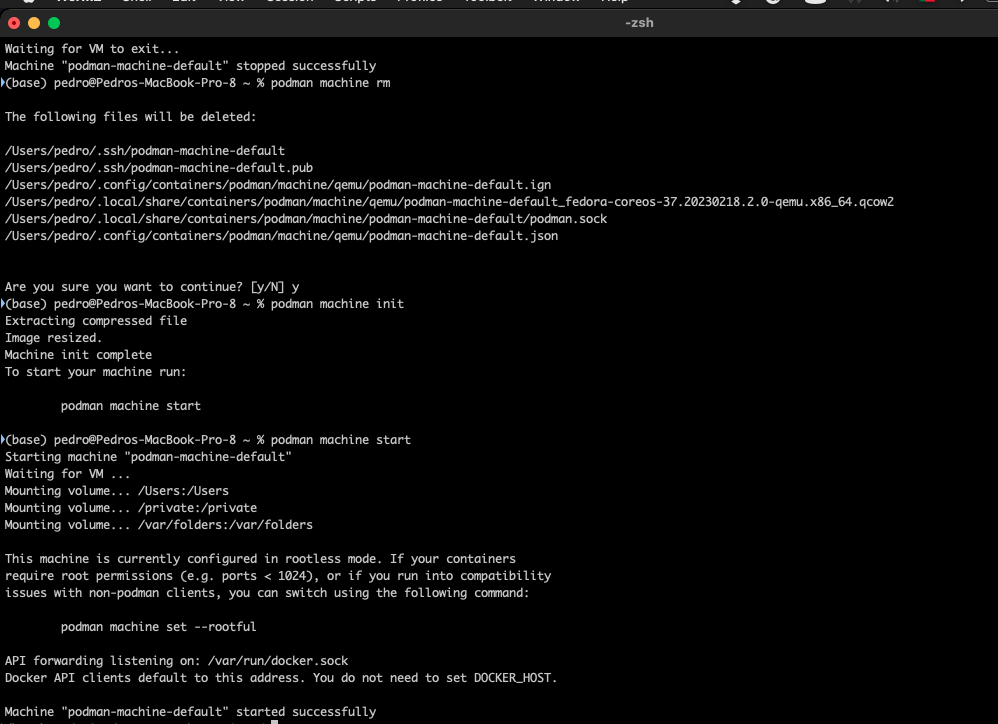
    podman machine rm
    podman machine init

    podman machine start

  • macOS disk utility terminal

    Today, we will learn how to use disk utility terminal mode for recording dvd-rw or dvd-r.

    This tool is very useful for system administrators.

    First of all, we will learn how to erase dvd-rw.

    hdiutil burn -erase

    Now, we will see how to record a dvd-rw.

    hdiutil burn name_of_.iso

    I chose to record as an example the iso from Debian, debian.org, the latest iso build.

  • macOS kill services

    Hello readers,

    Today, we are going to deliver one more topic about cli. On this article, we are going to learn how to kill services under terminal application.

    As we see, it’s empty for now the terminal, or iTerm2.

    Now, we are going to call a command from the operating system called top.

    We are going to kill on the terminal the service called qemu. With the pid as 4293.

    Press q (to exit)

    Press Return carrier ( Enter)

    Now, go back to the top command to see if the service has gone.

    As we see there’s nothing now.

    Press q again ( exit command)

  • how to flash odroid on an emmc flasher

    Hello readers,

    https://wiki.odroid.com/odroid-n2/os_images/ubuntu/20220629

    https://east.us.odroid.in/ubuntu_22.04lts/N2/ubuntu-22.04-4.9-minimal-odroid-n2-20220622.img.xz

    Install on macOS balena etcher.

    Now, choose the image file from Downloads folder.

    Now, select target.

    Finally, we can flash them. It will ask for our password before flashing.

    In the end, it will say well done.

  • how to create an iso image on macOS

    Hello readers,

    Today, we are going to learn how to make an iso image on macOS.

    First of all, call the disk utility.

    Then go to file. New as image.

    Now finally, on the terminal type the following command.

    cd Downloads
    hdiutil makehybrid -iso -joliet -o -FILENAME.iso FILENAME.cdr

  • CentOS 9 build a rpm dev-env

    Hello readers,

    Today we are going to see how to build an rpm dev environment.

    sudo yum install rpm-build

    sudo yum install gcc make

    Now, we are going to build a directory to work with an rpm building. In the next article, we will learn how to build and install an rpm on the centOS 9 stream.

    sudo yum install redhat-rpm-config

    mkdir -p ~/rpmbuild/{BUILD,RPMS,SOURCES,SPECS,SRPMS}

    We must build on the ($HOME) directory to avoid damage on the fly under the installment of the centOS 9. In the next article, we will learn how to build an rpm package under the $HOME folder.

coder by Gleentech
Privacy Overview

This website uses cookies so that we can provide you with the best user experience possible. Cookie information is stored in your browser and performs functions such as recognising you when you return to our website and helping our team to understand which sections of the website you find most interesting and useful.